Frequently Asked Questions
FAQs
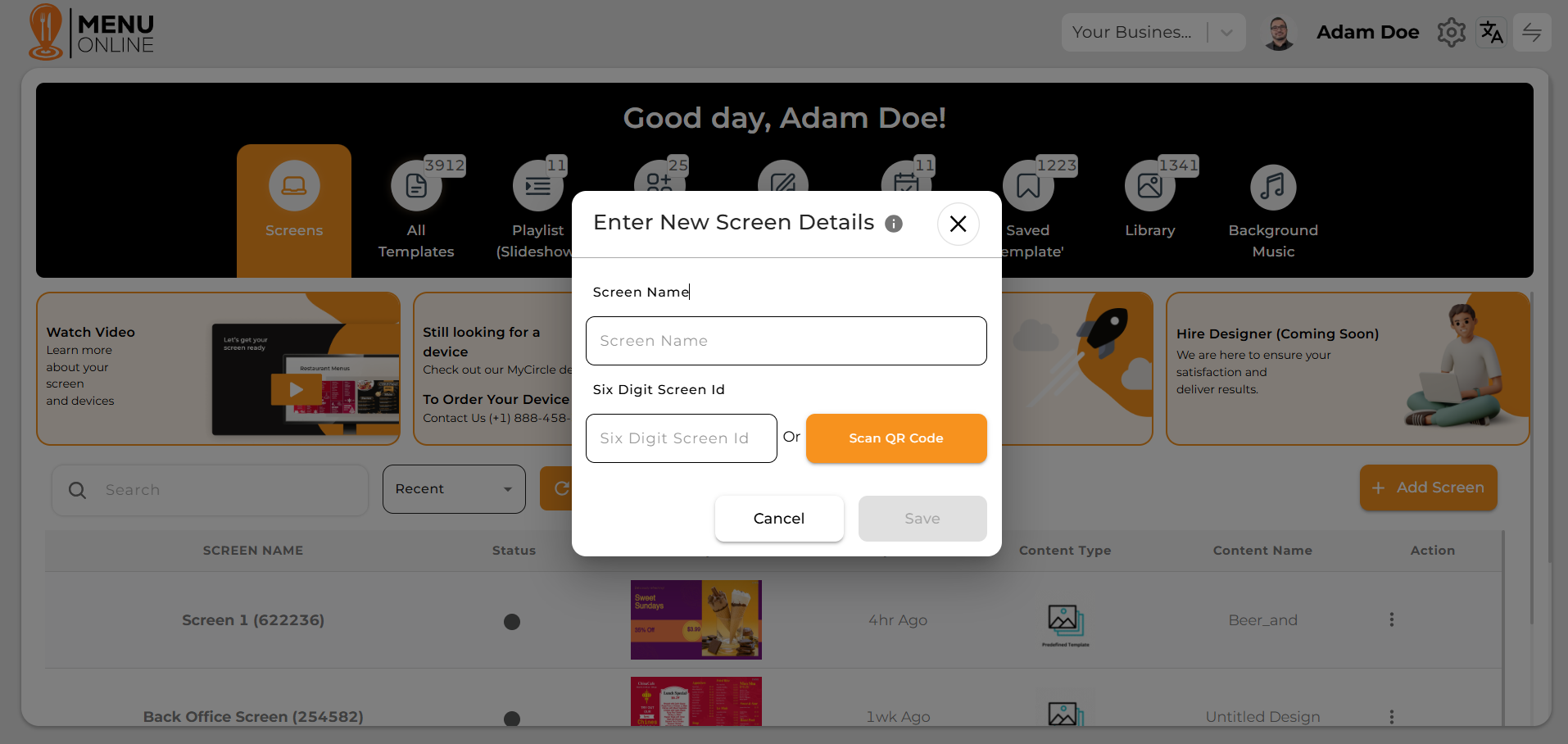
Step - 1 You can create a new screen by clicking on the add new screen button on the dashboard
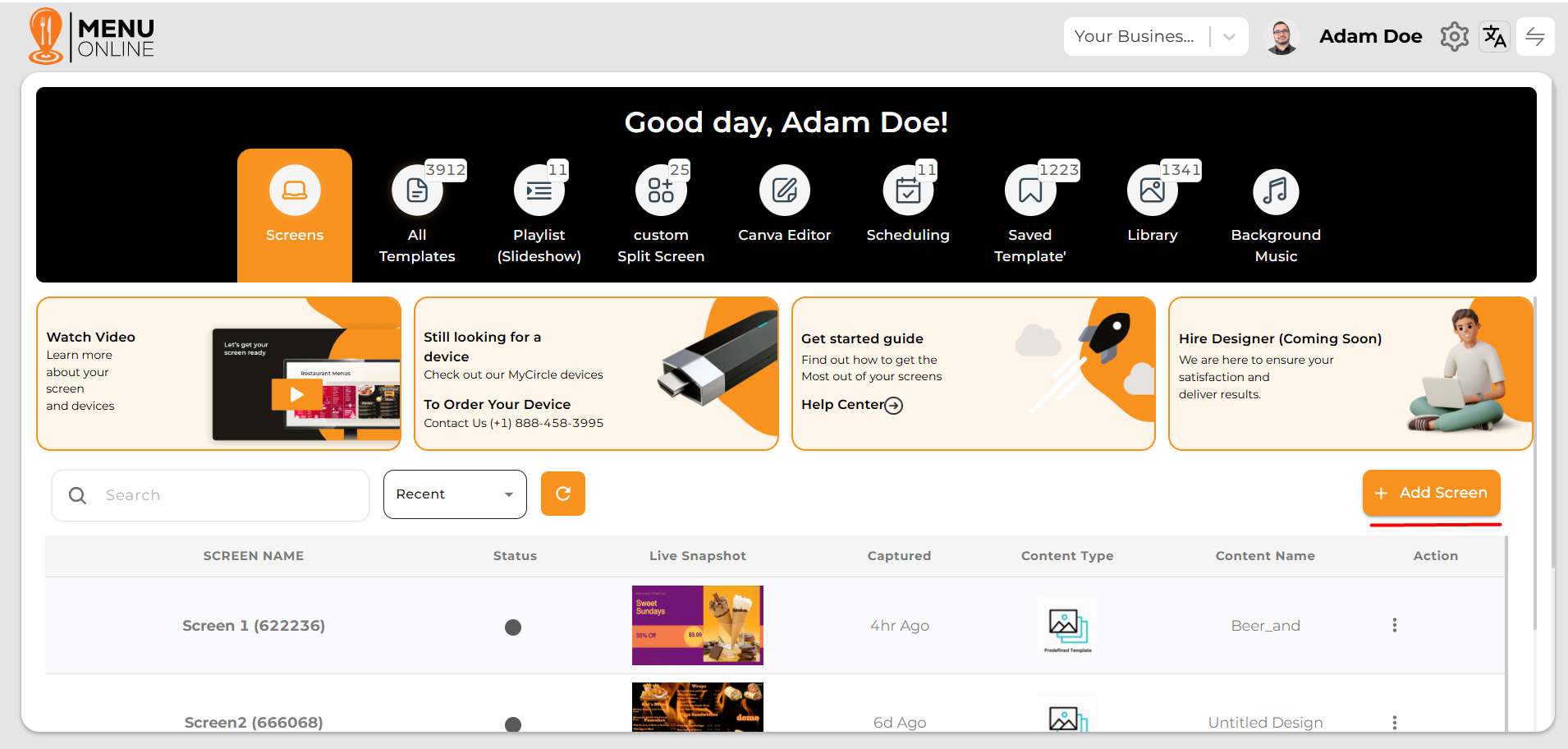
Step - 2 Clicking on the button will open the model, add all the details and a new screen will be created
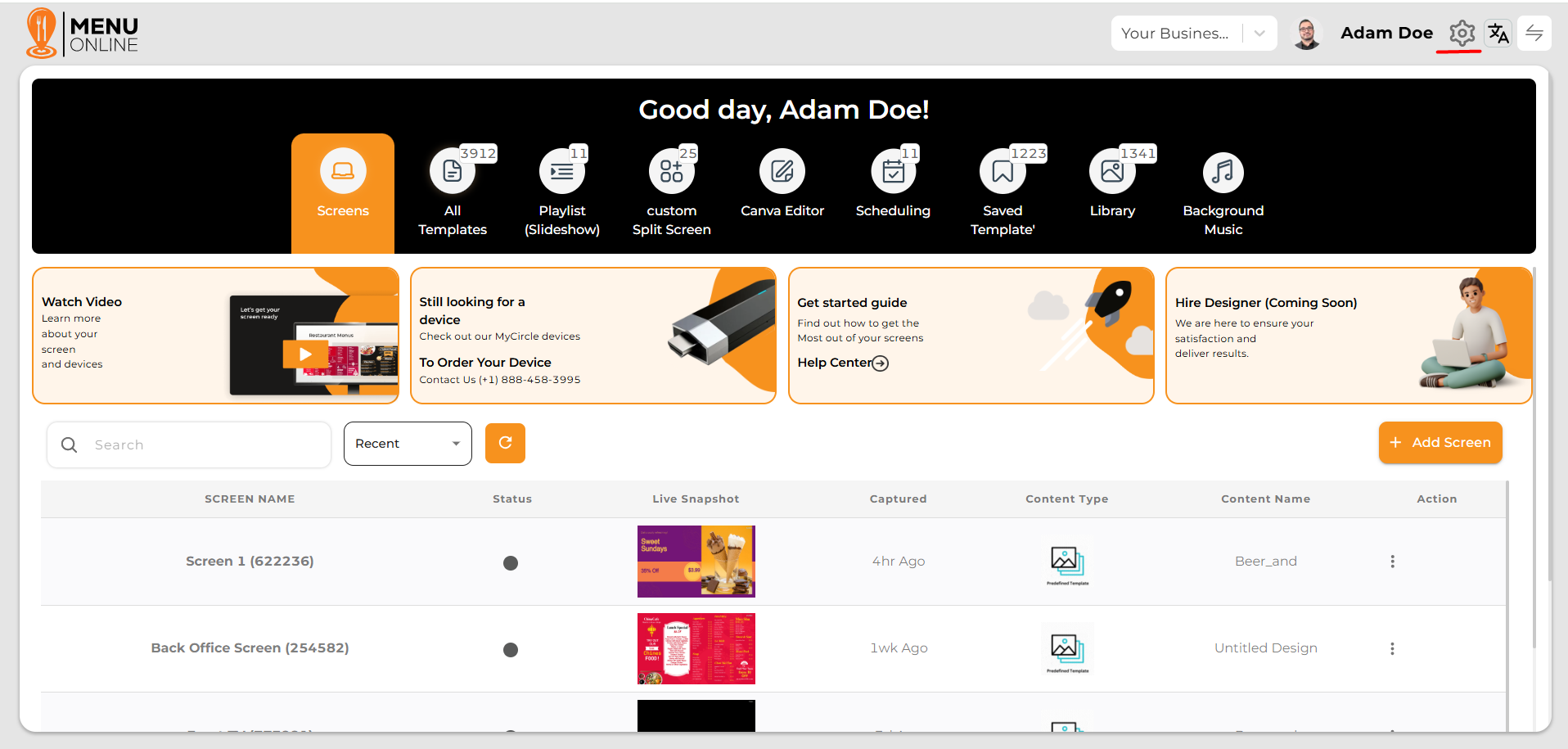
Step - 1 Click on the Settings icon at the top right corner. A dropdown menu will appear — select Logout from the menu to log out.
Step -2 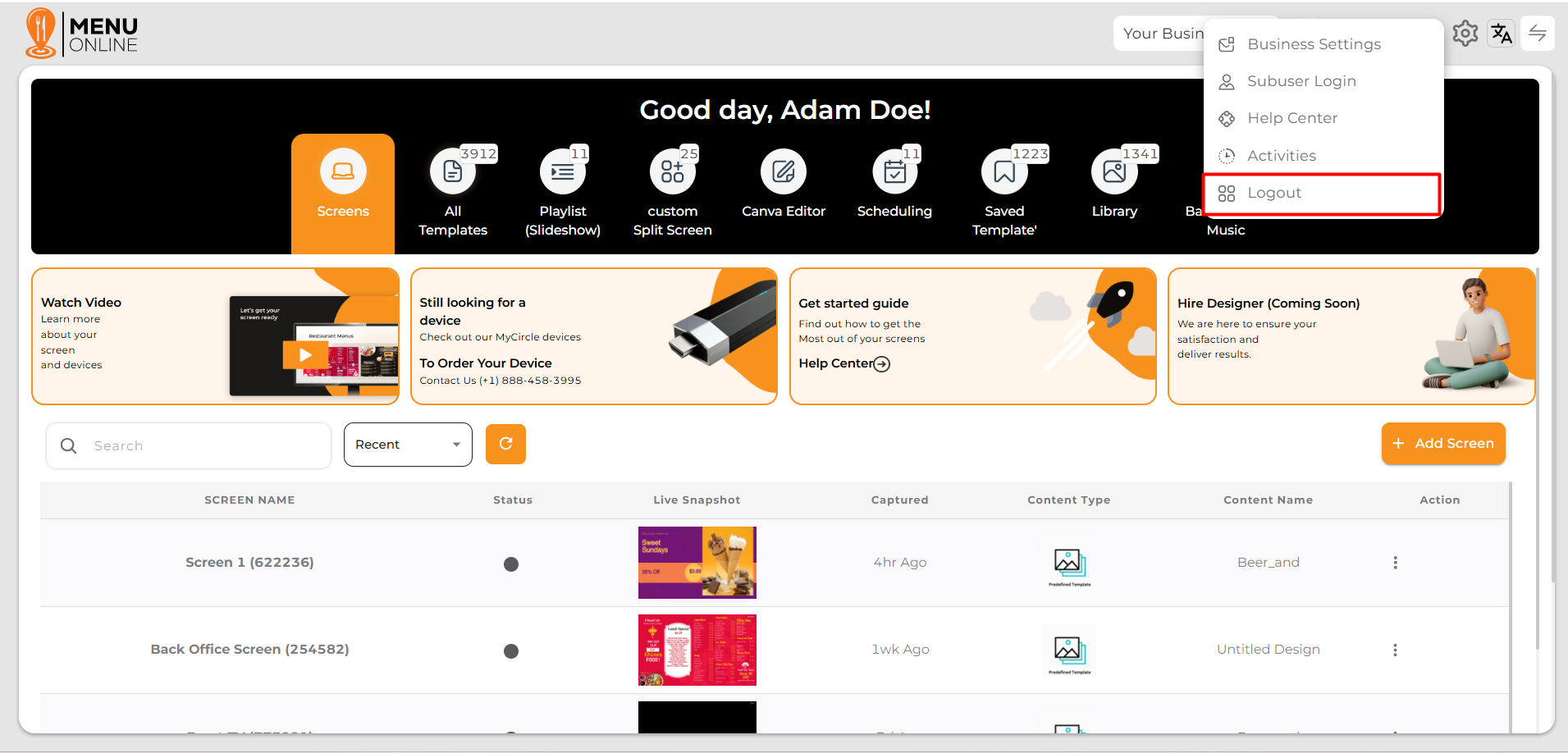
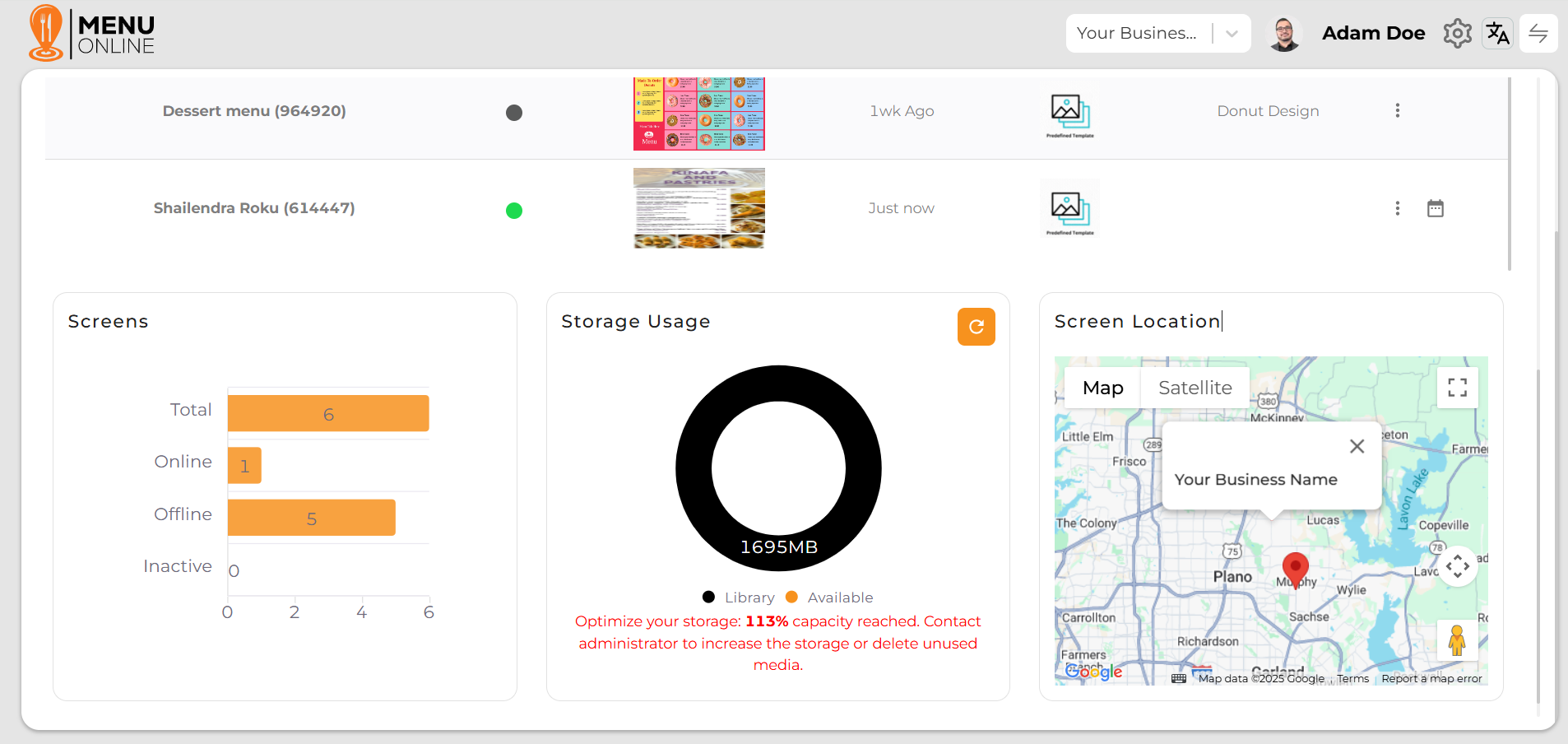
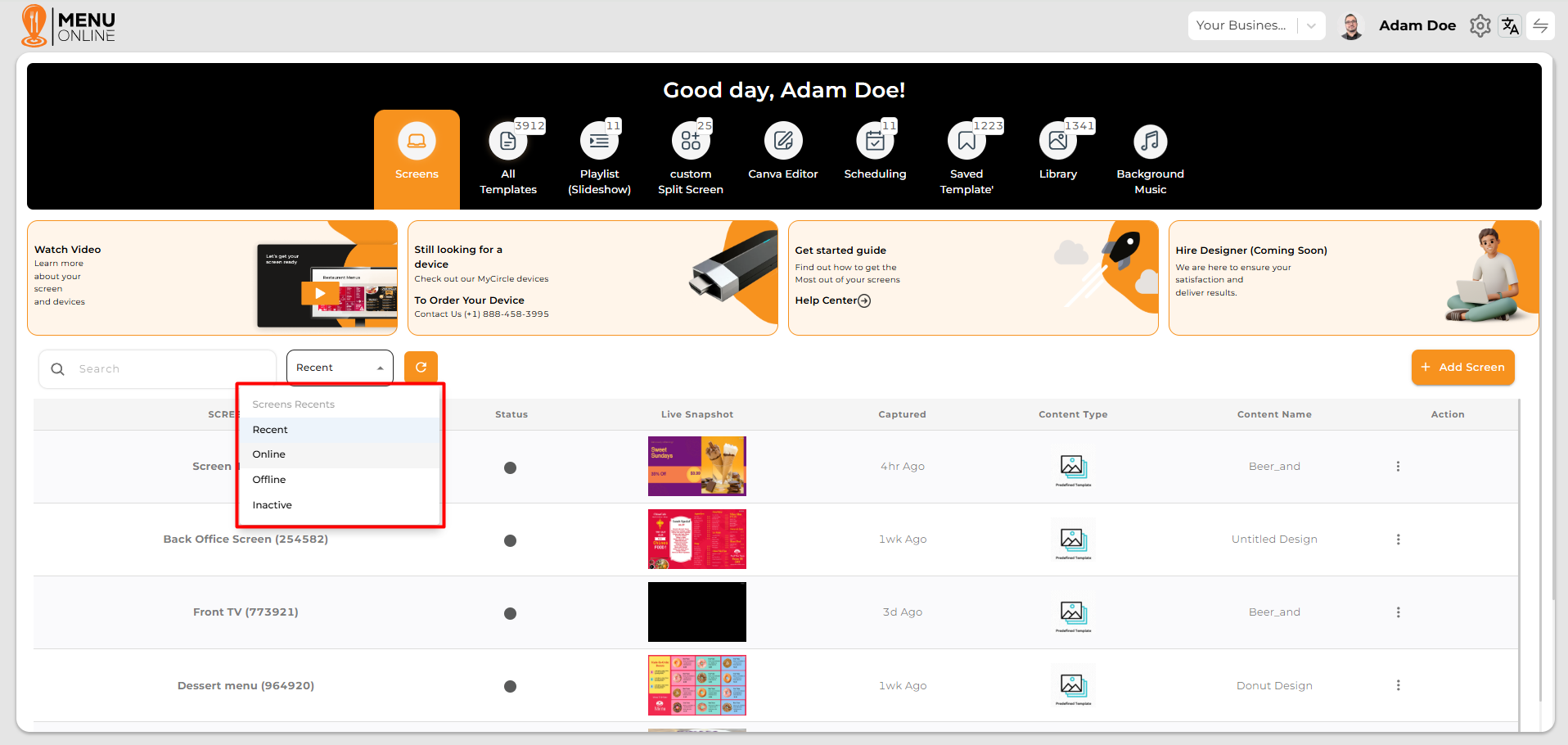
Step - 1 To view the status of screens (Online, Offline, Inactive), simply check the “Status” column on the dashboard.
Step - 1 To see screen details hover over 3 dots and than click on the option named screen details.
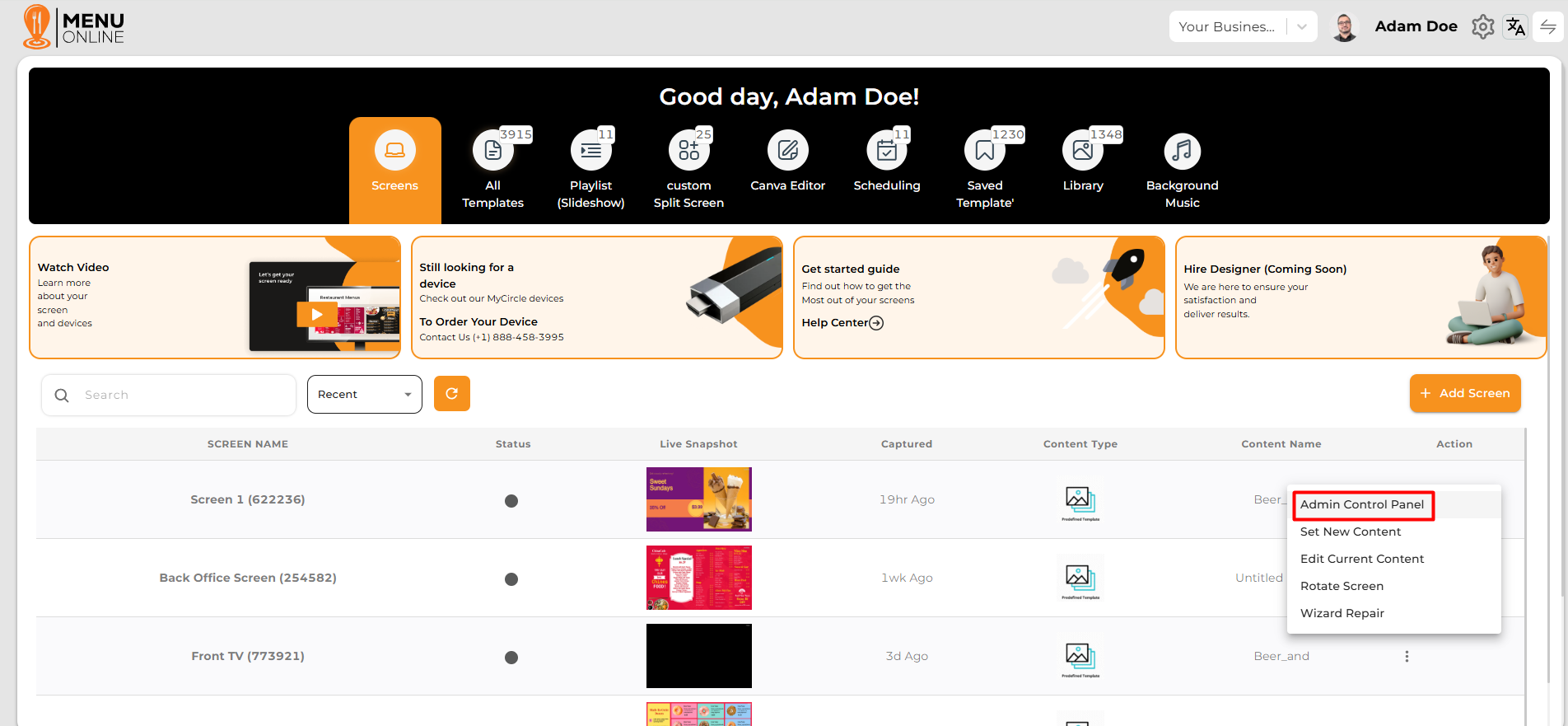
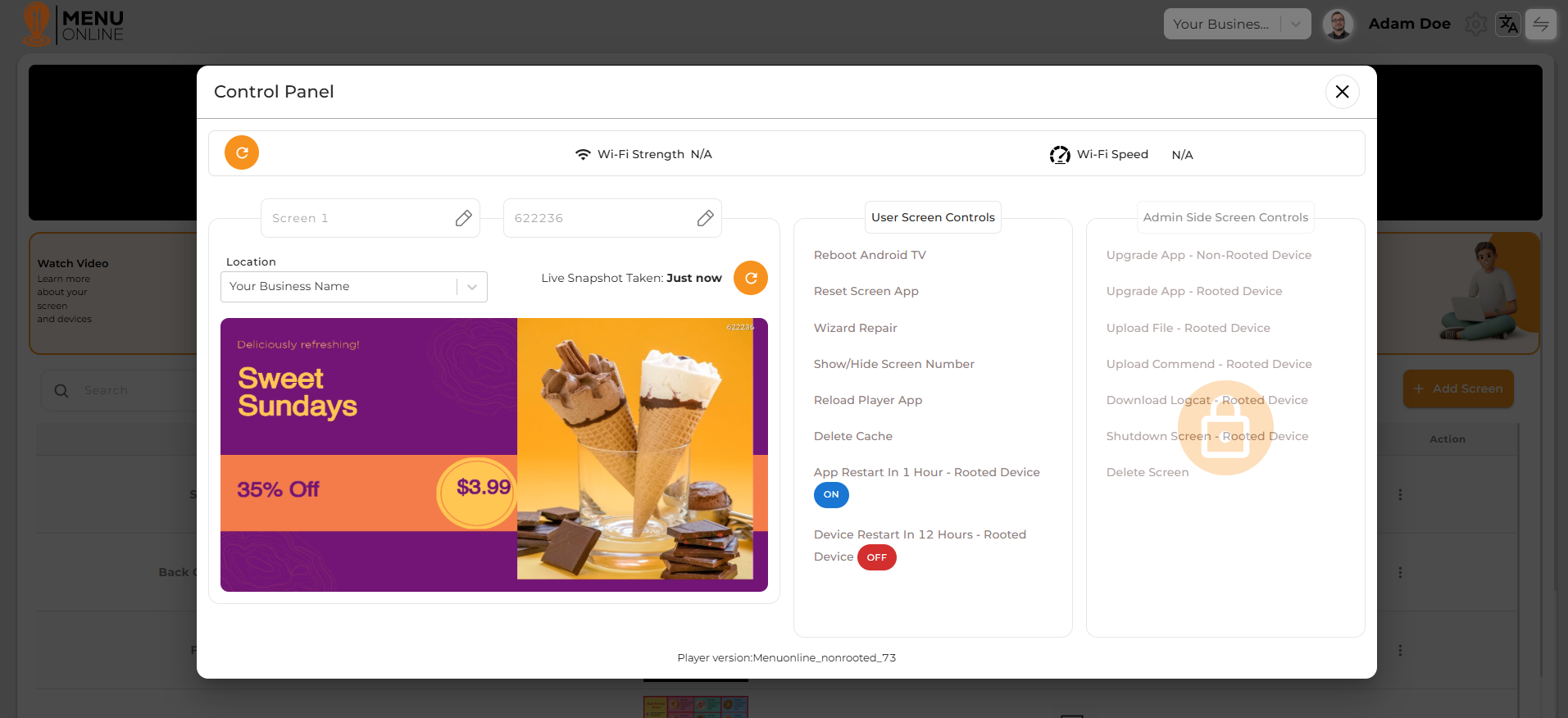
Step - 2 View screen details
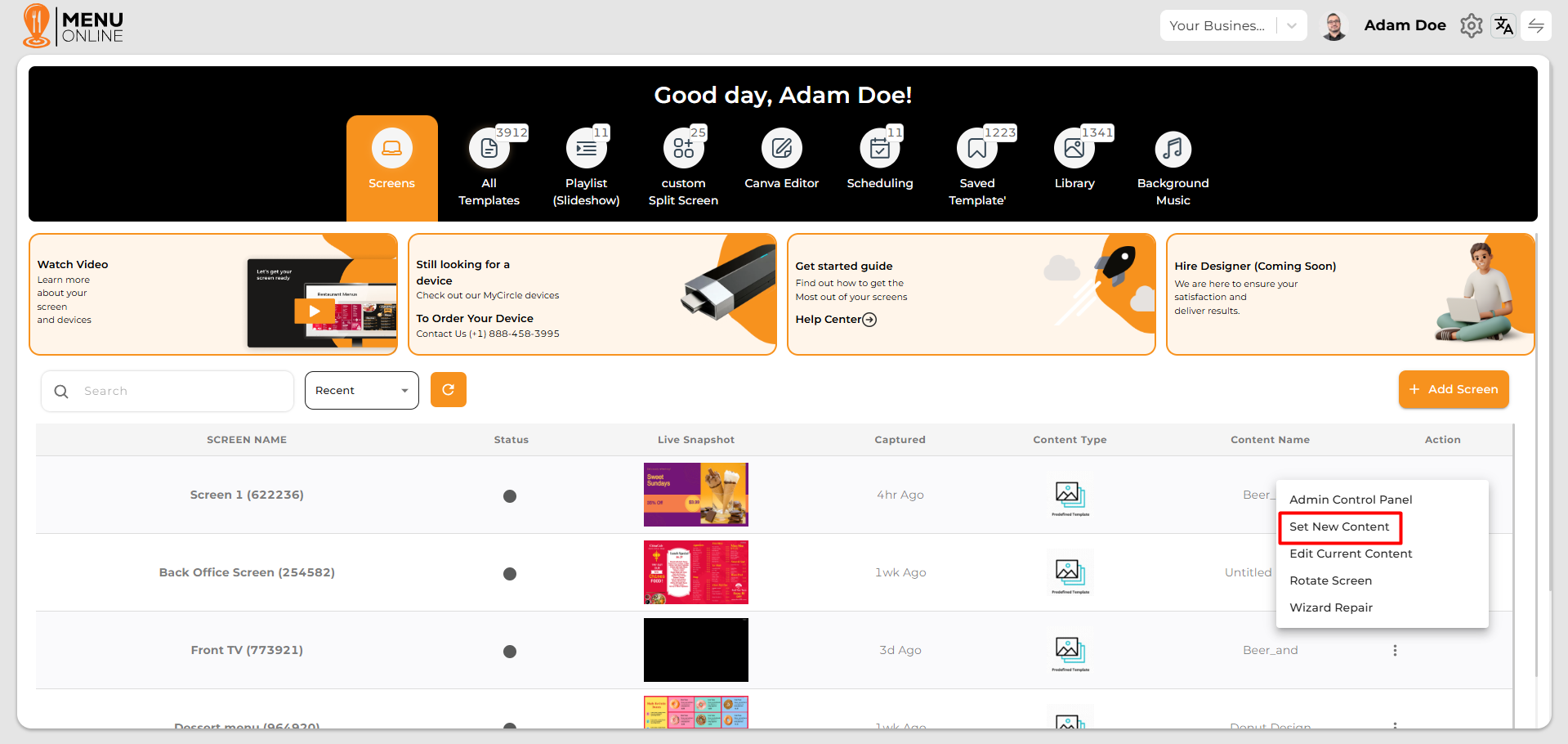
Step - 1 To set new content hover over 3 dots and than click on the option named Set new content.
Step - 2 A model named select content type will open. Select any one of the options and you will be able to set new content.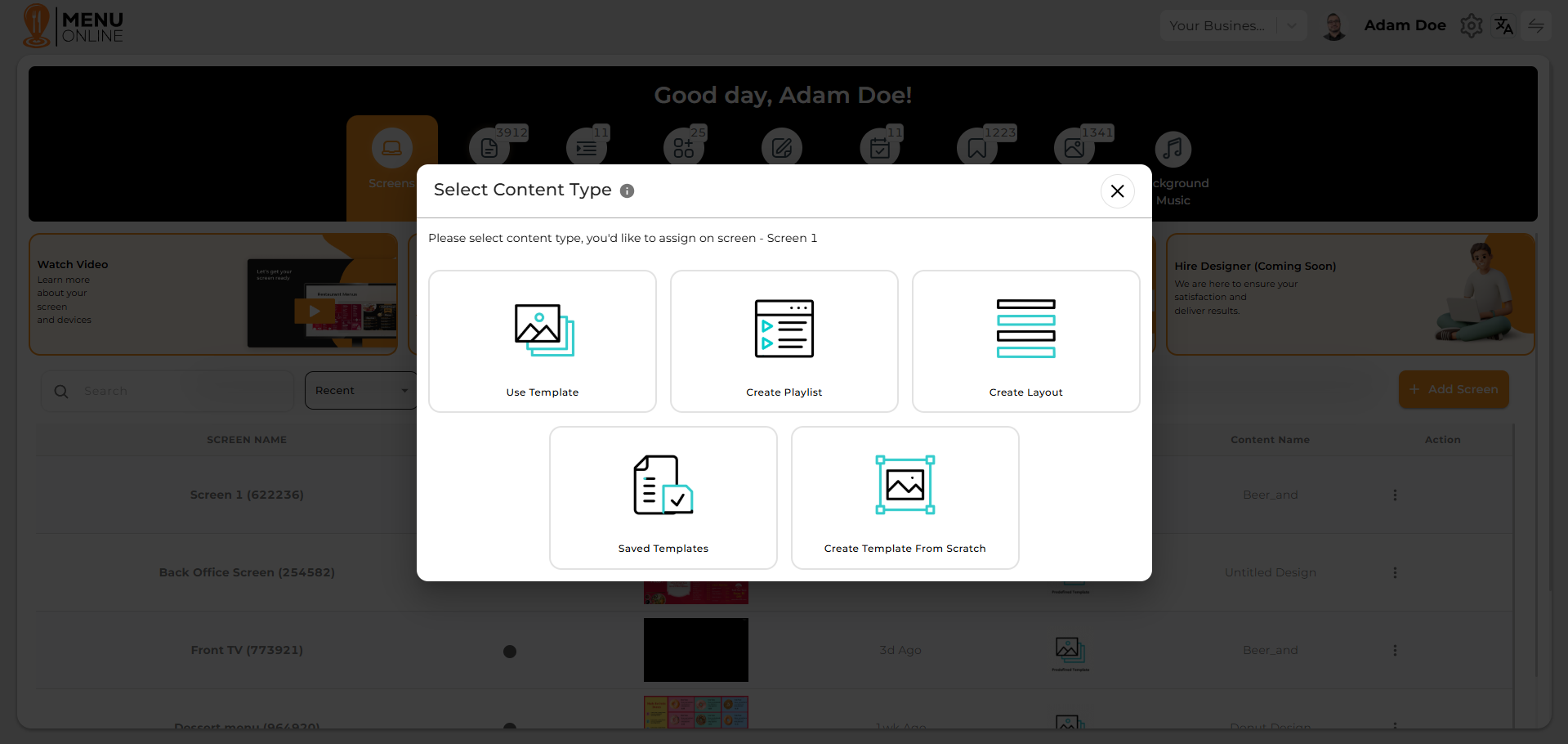
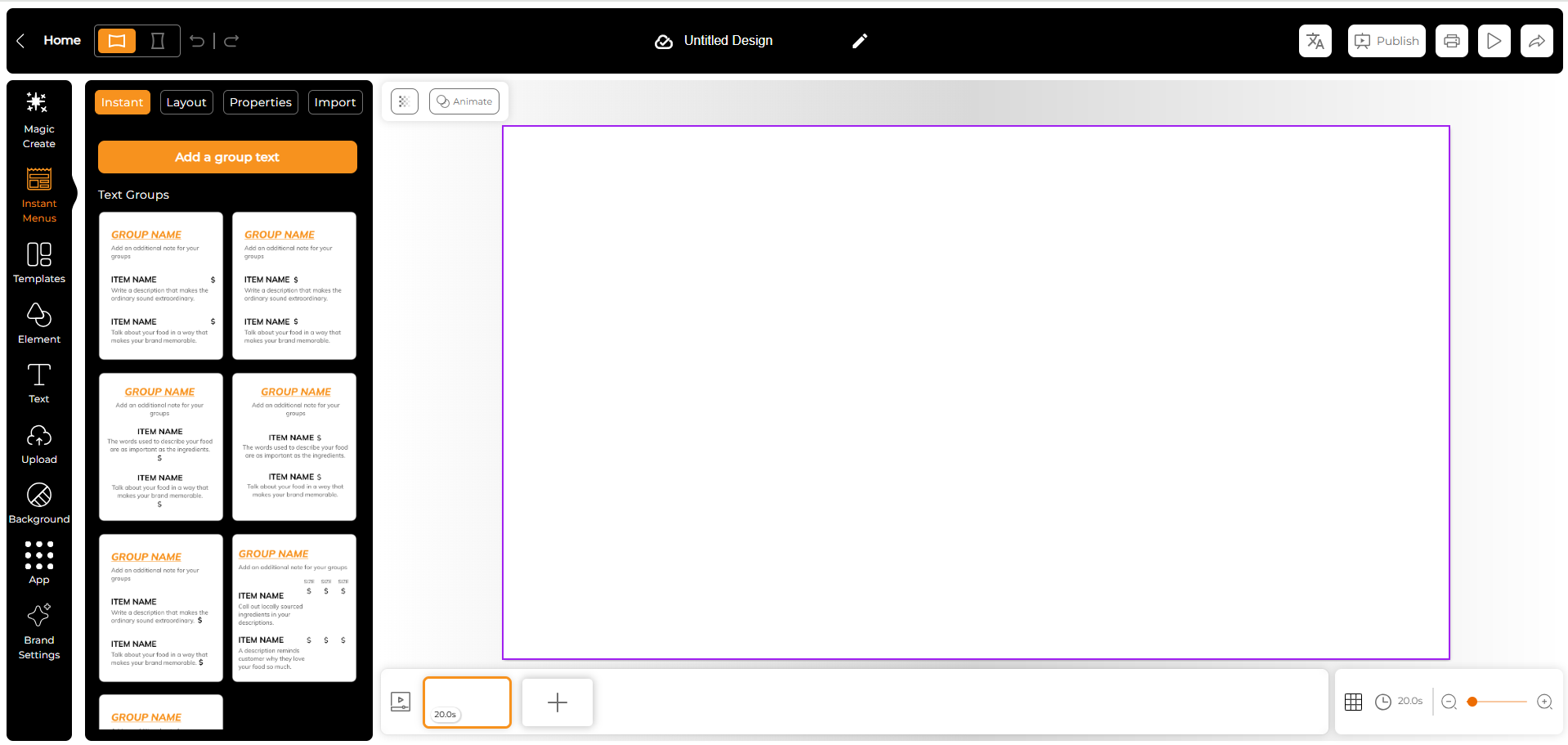
Step - 1 From your dashboard, click on the Canva Editor in the top navigation bar under the Screens section. This allows you to start designing a new template from scratch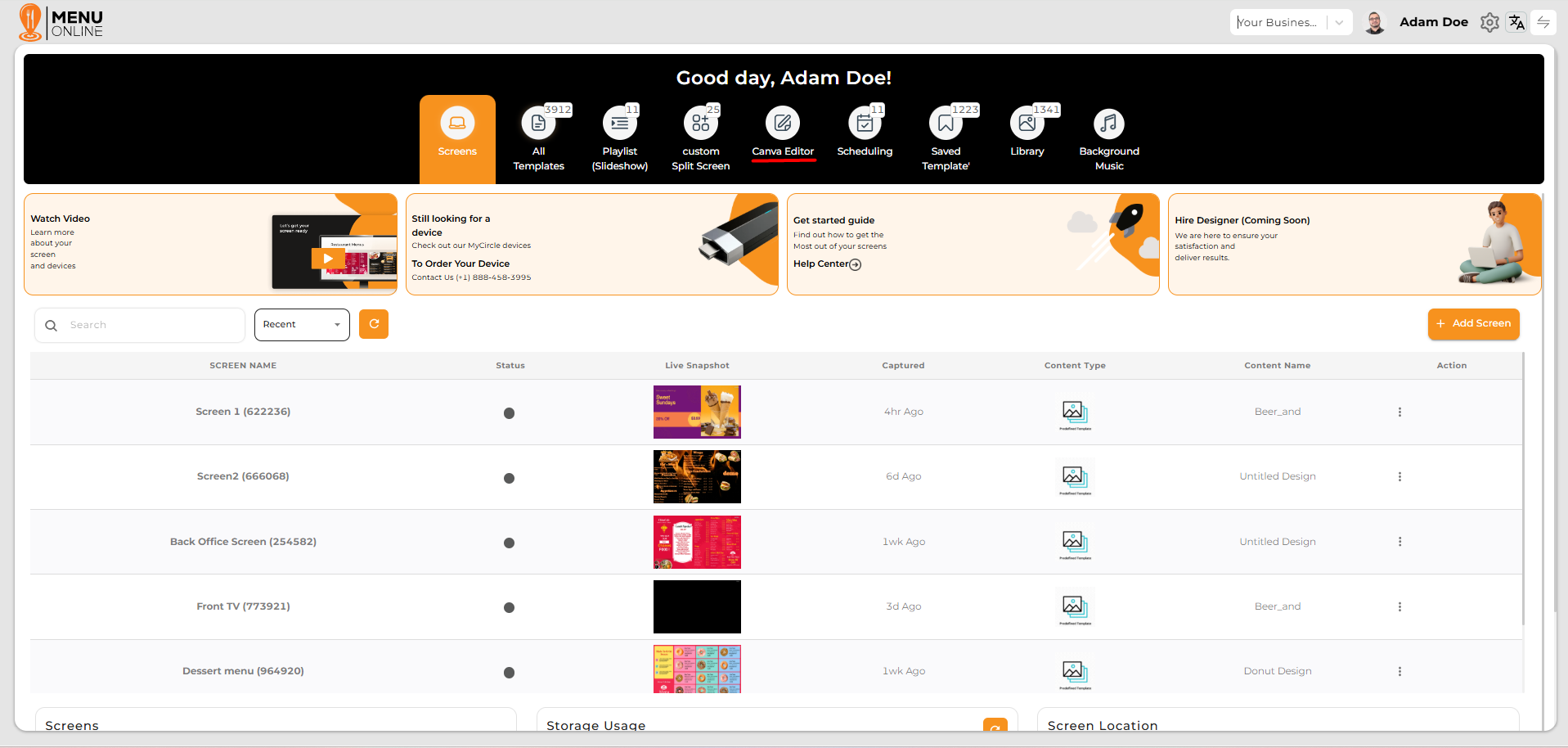
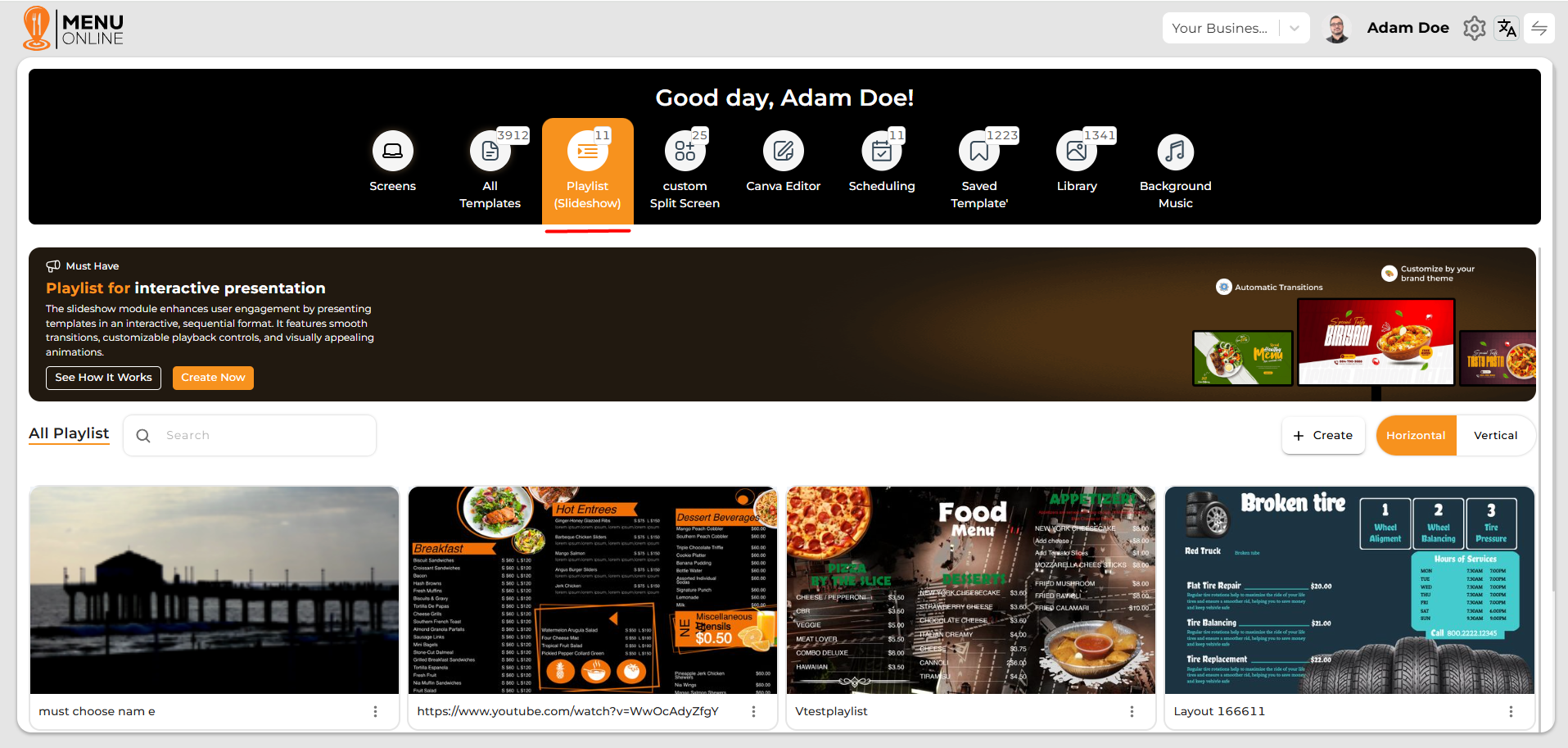
Step - 1 You can design a new poster by clicking on the content option that appears on the sidebar and clicking on create button in Playlist(Slideshow).
Step - 2 You can add existing images or templates in playlist or add upload new image by clicking on Upload Media.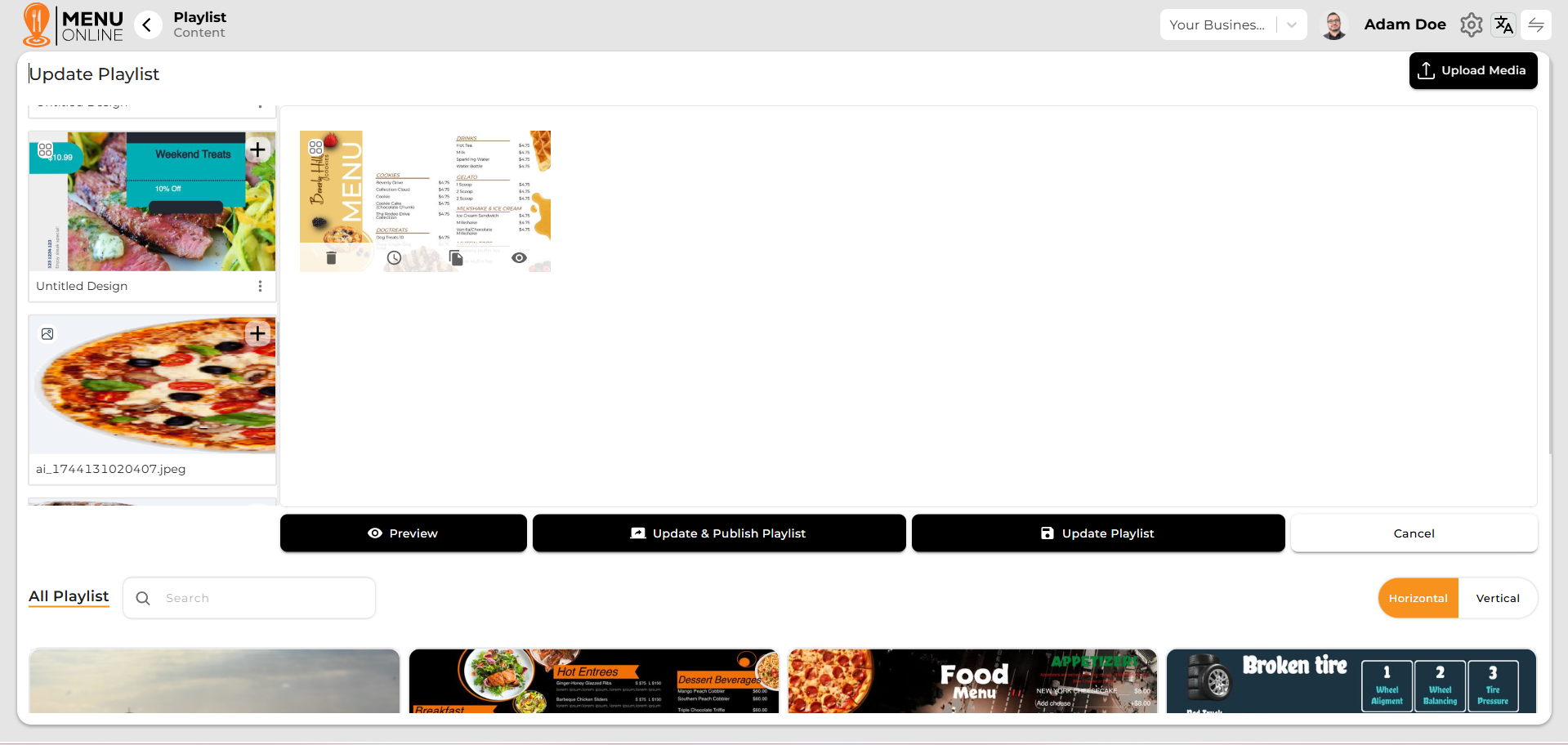
Step - 1 After placing the templates stored in the playlist in the right side box and doing so, you will be able to preview and save this playlist.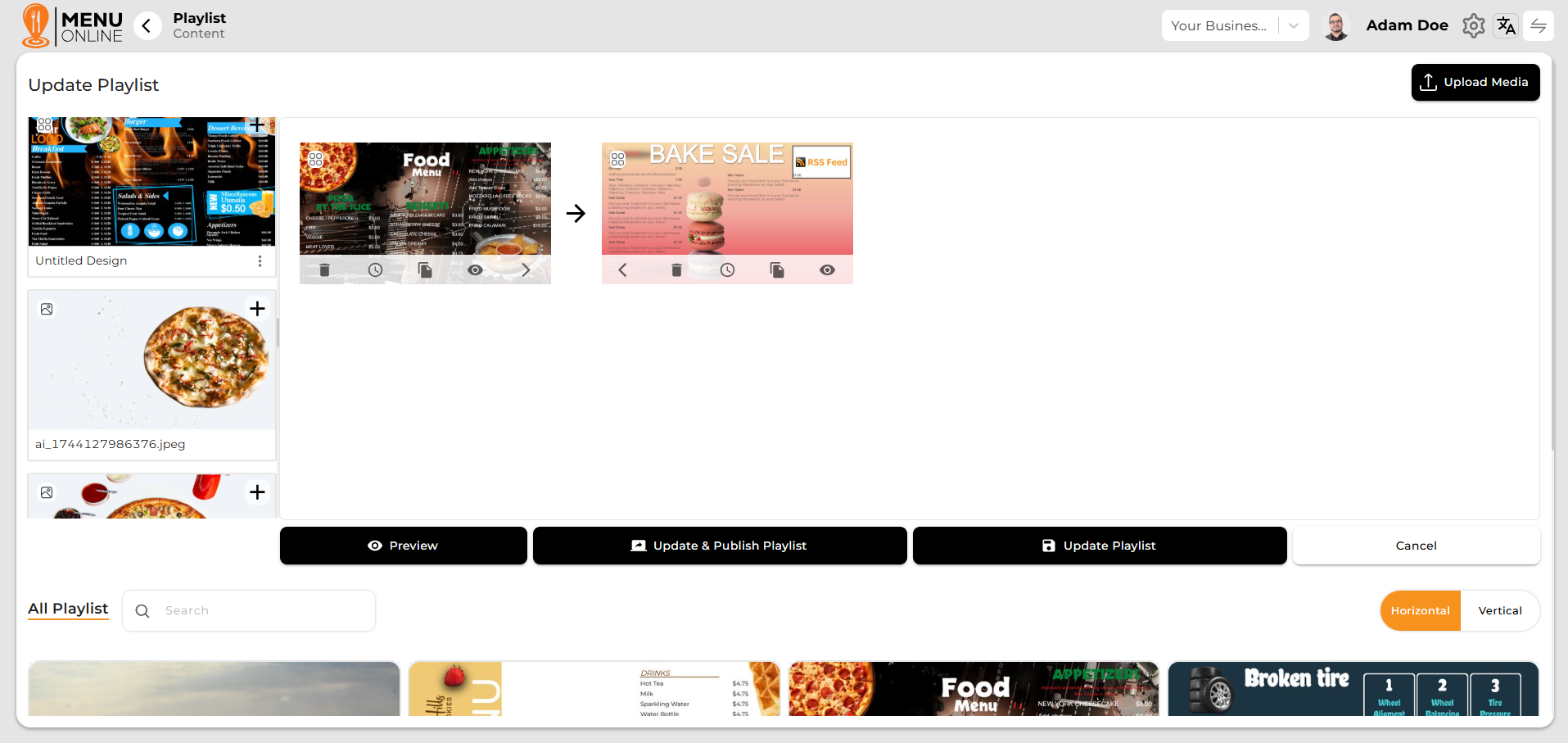
Step - 2 After drag and drop you can delete it, clone, set duration, and preview it.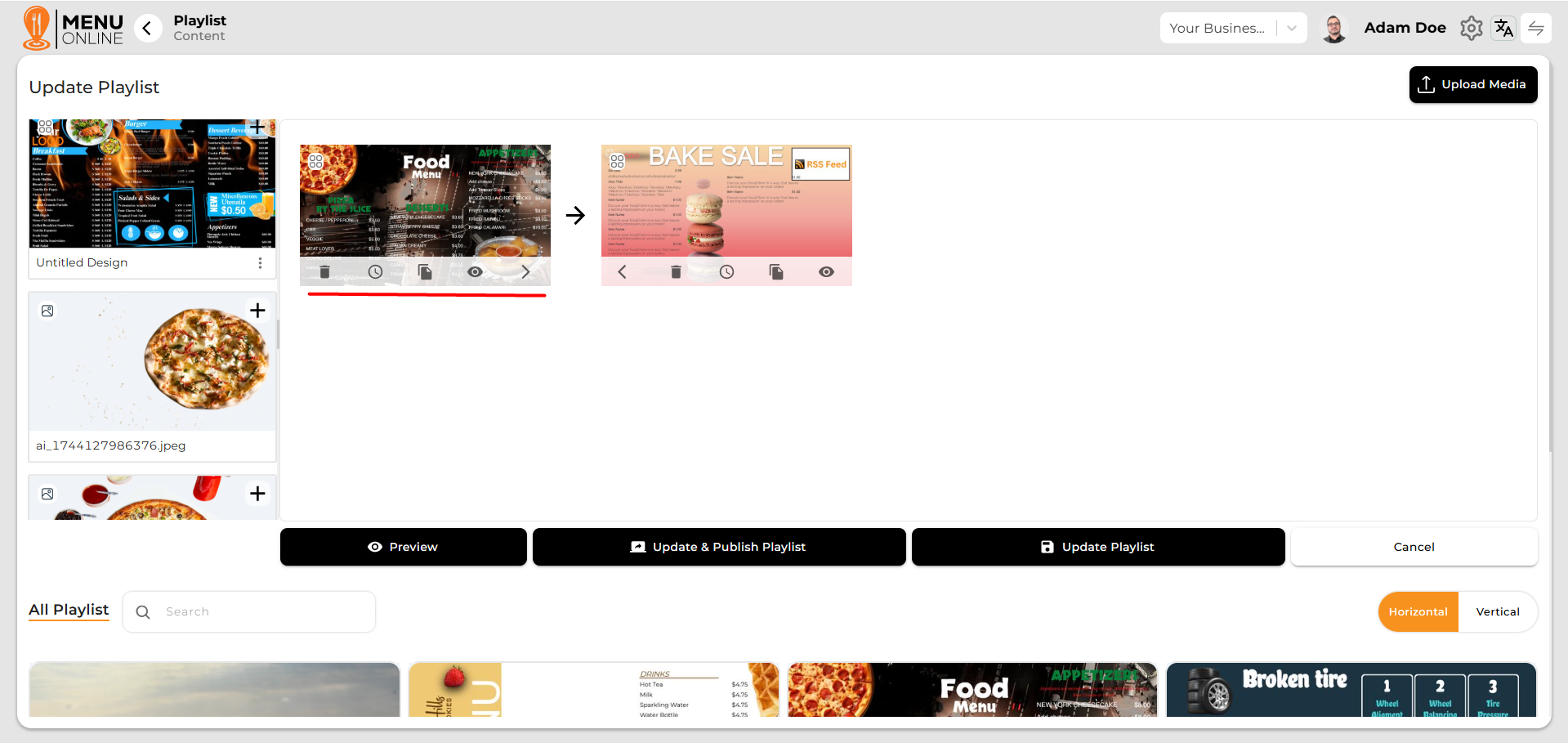
Step - 3 After drag and drop you can see a preview by clicking on the preview.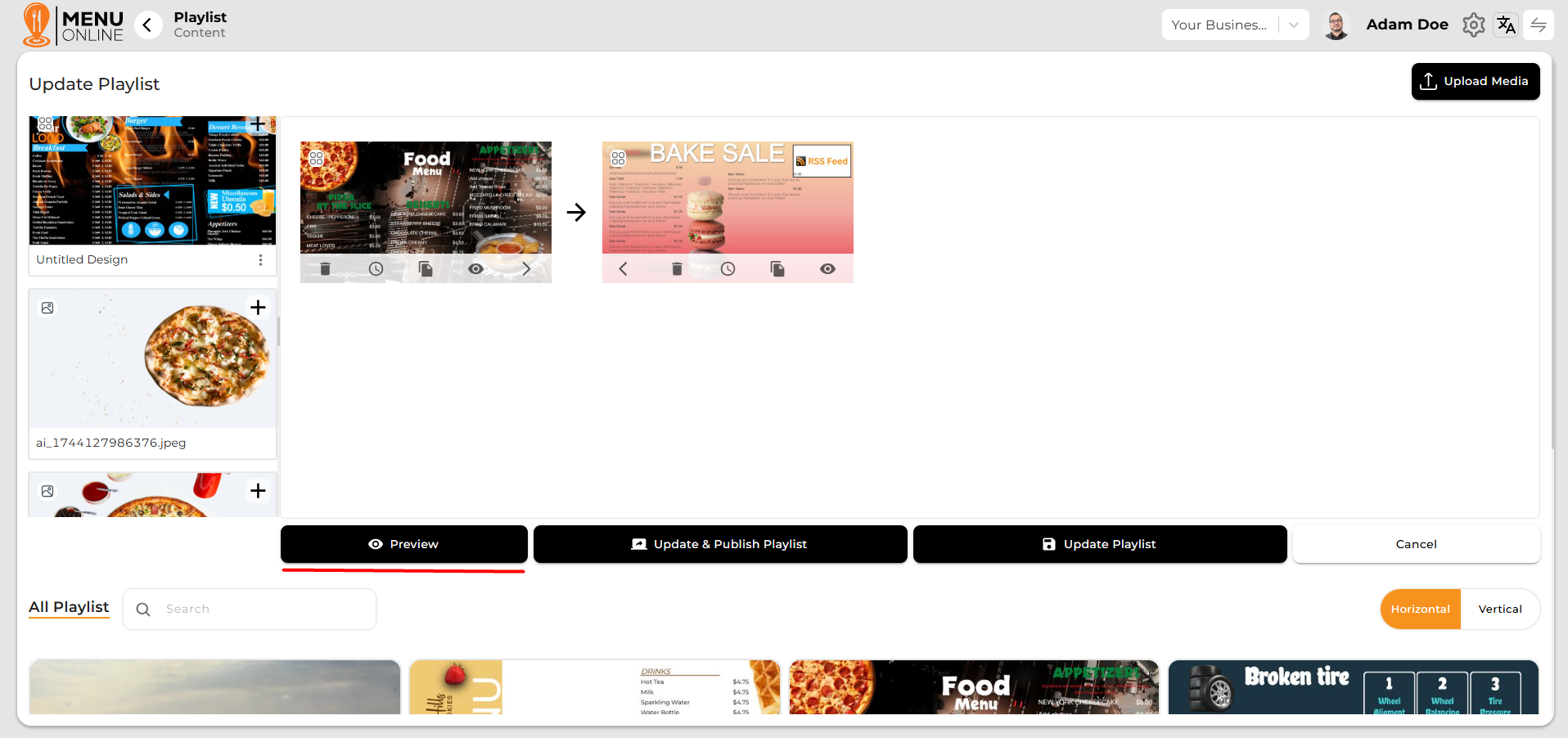
Step - 4 After drag and drop you can save a playlist by clicking on the saved playlist.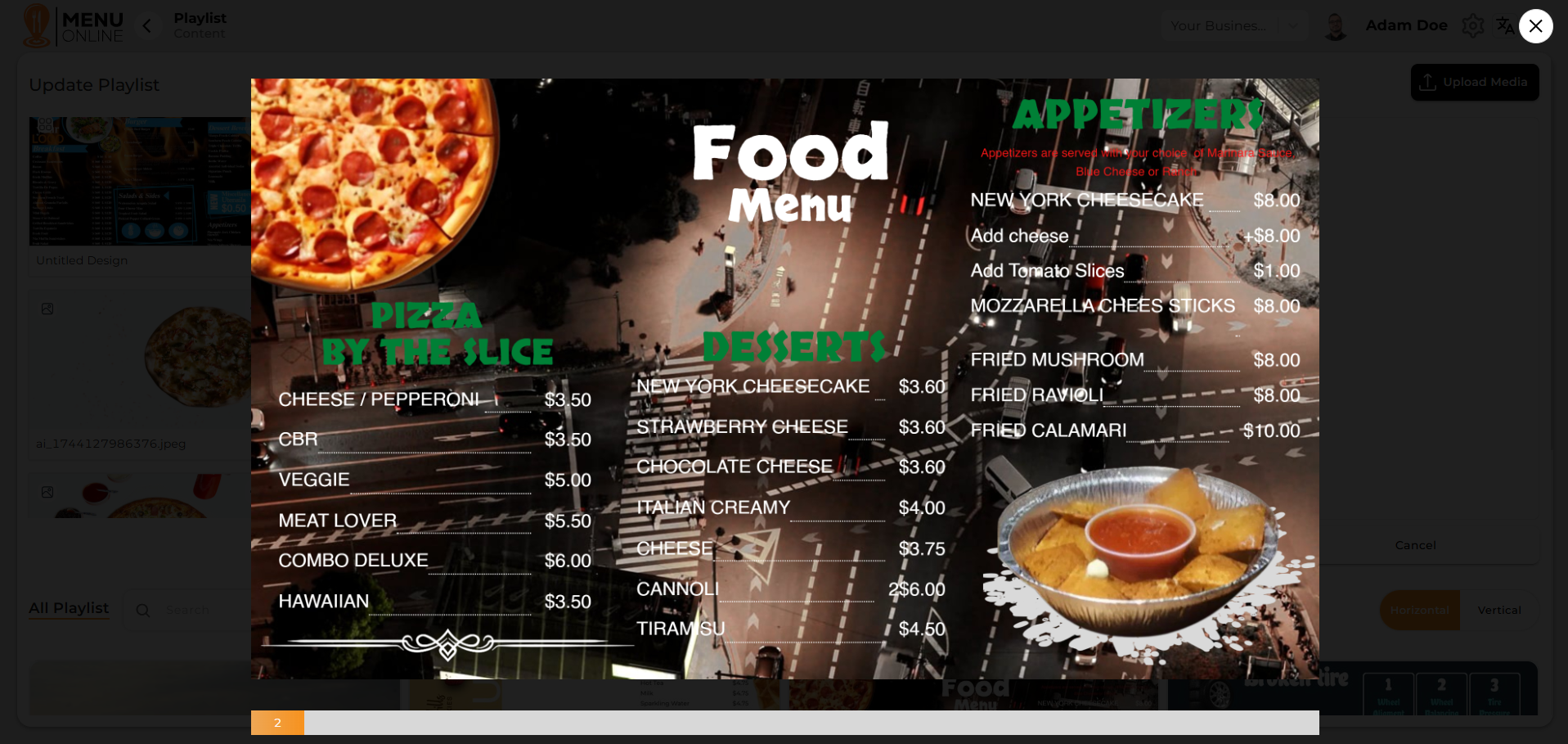
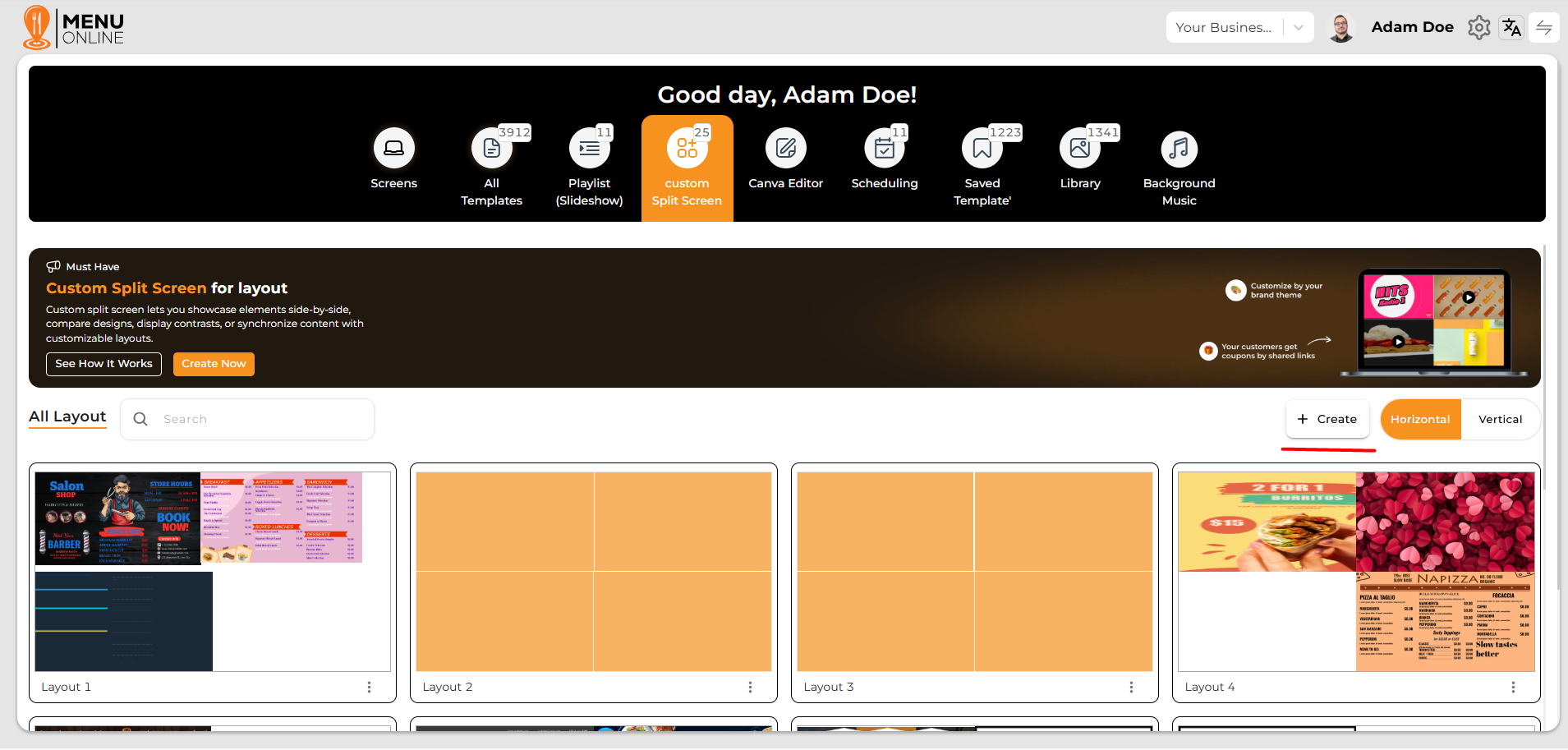
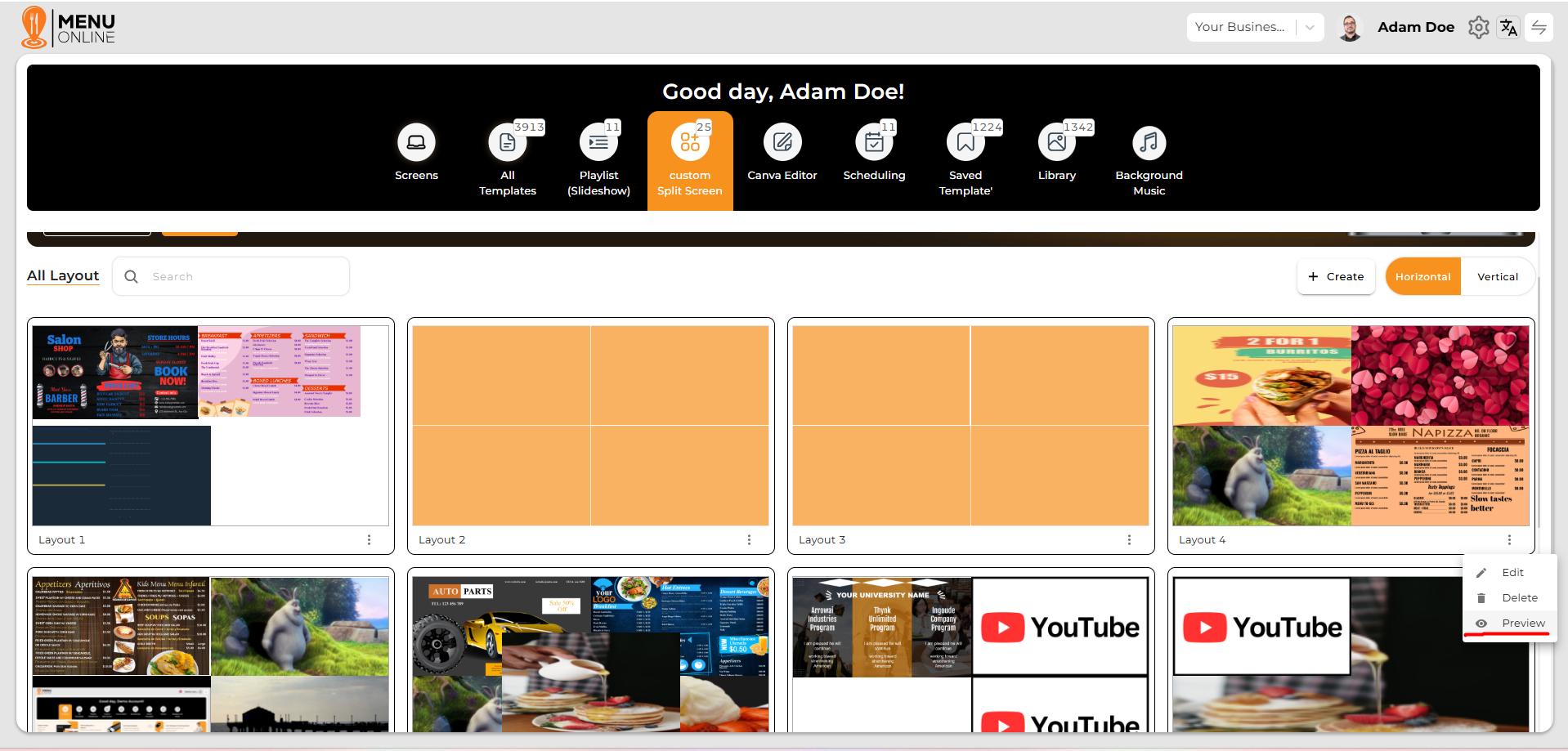
Step - 1 You can create a new screen layout by clicking on the content option that appears on the sidebar and clicking on create button in Custom Split Screen.
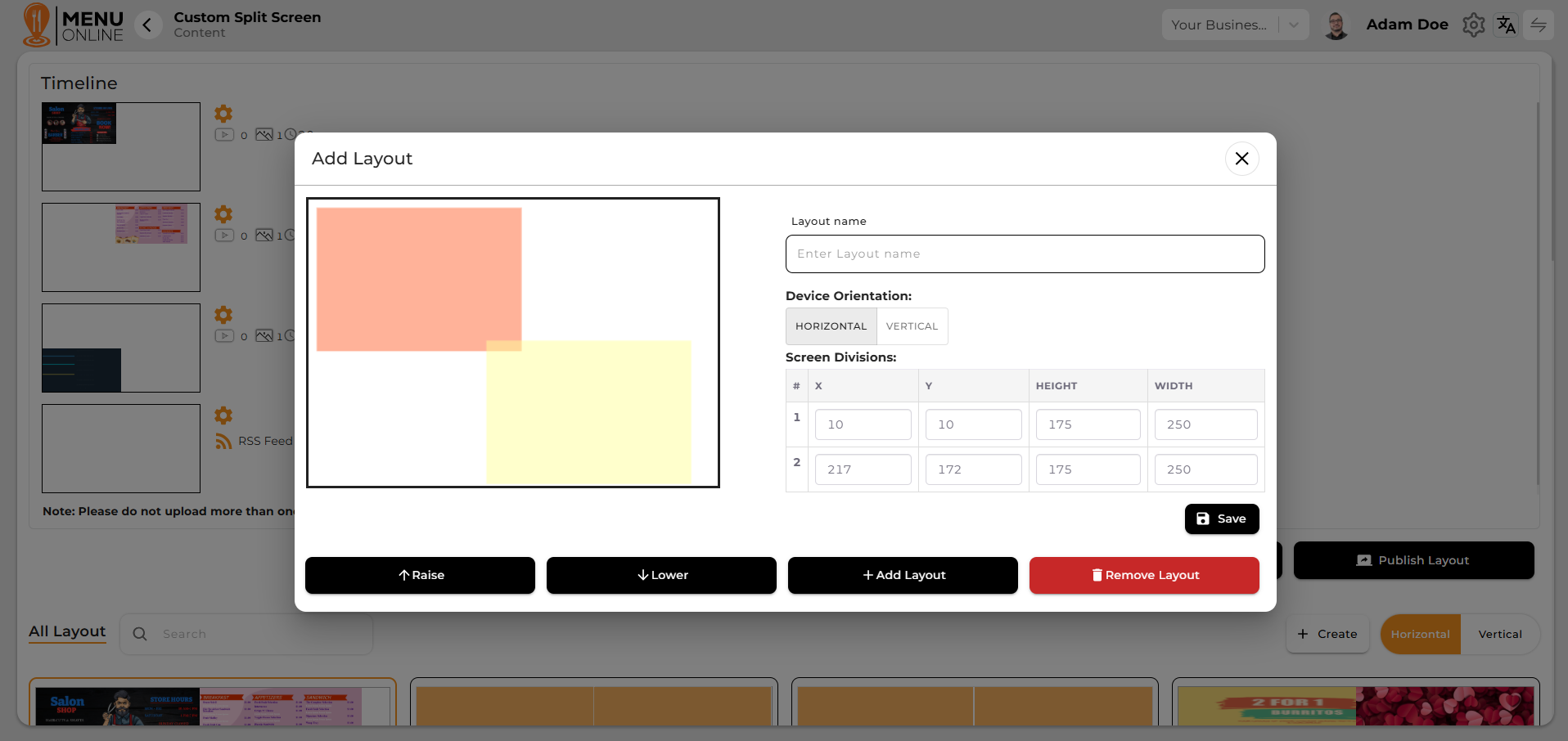
Step - 1 With the help of the timeline, set the screen time of the template and also loop a screen.

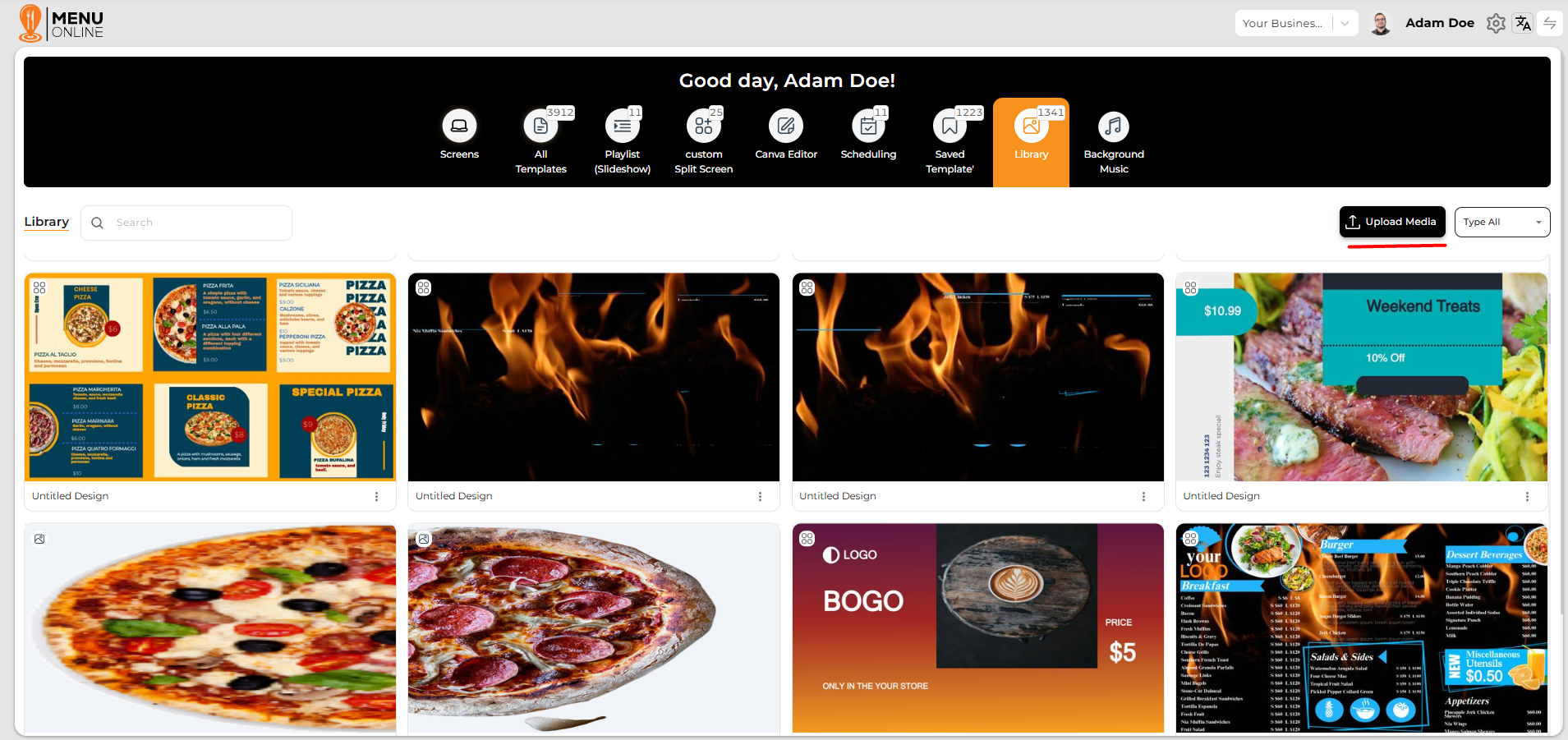
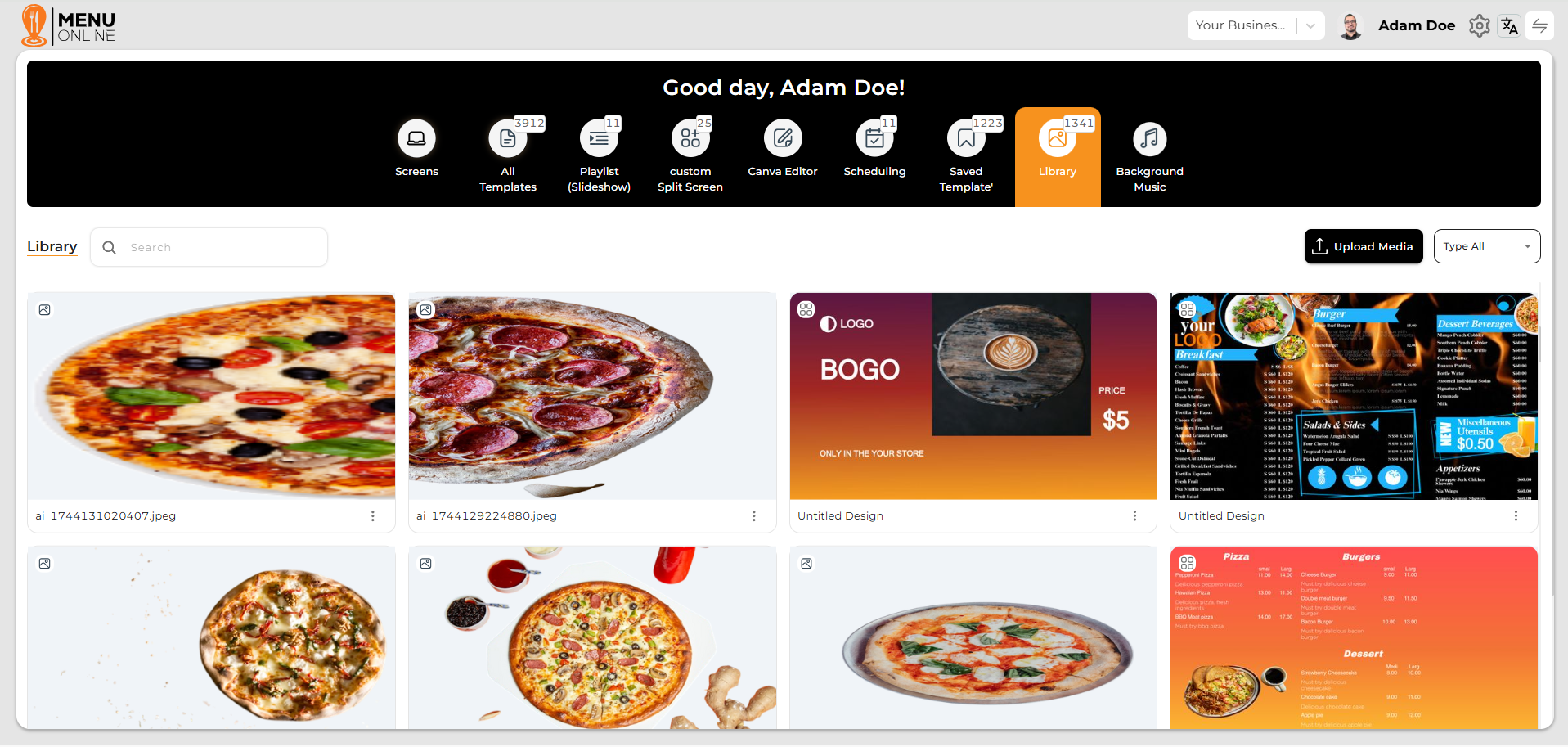
Step - 1 With the help of the library, you can upload and manage media files that can be used later in templates or playlists.
.

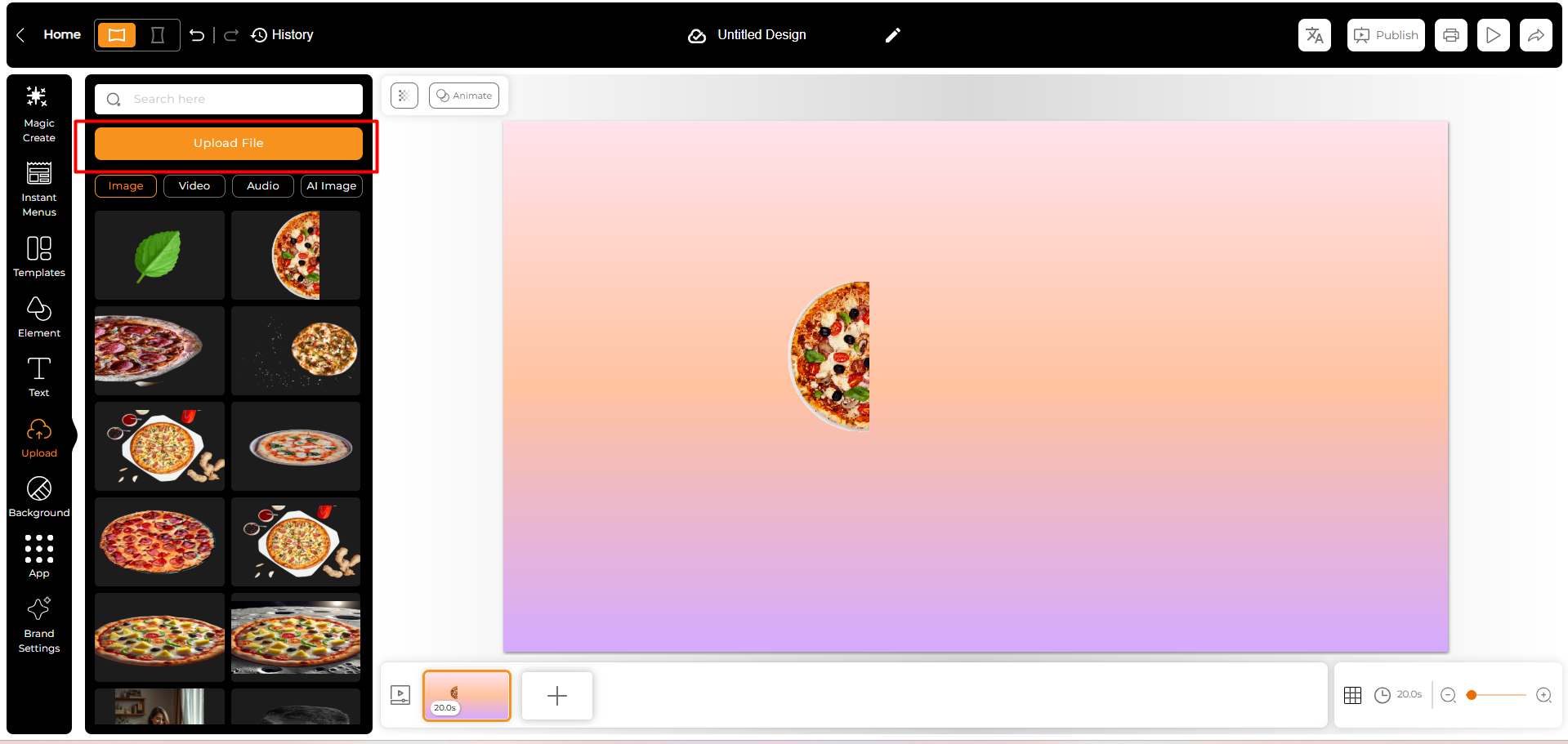
Step-1 Click on upload new media.
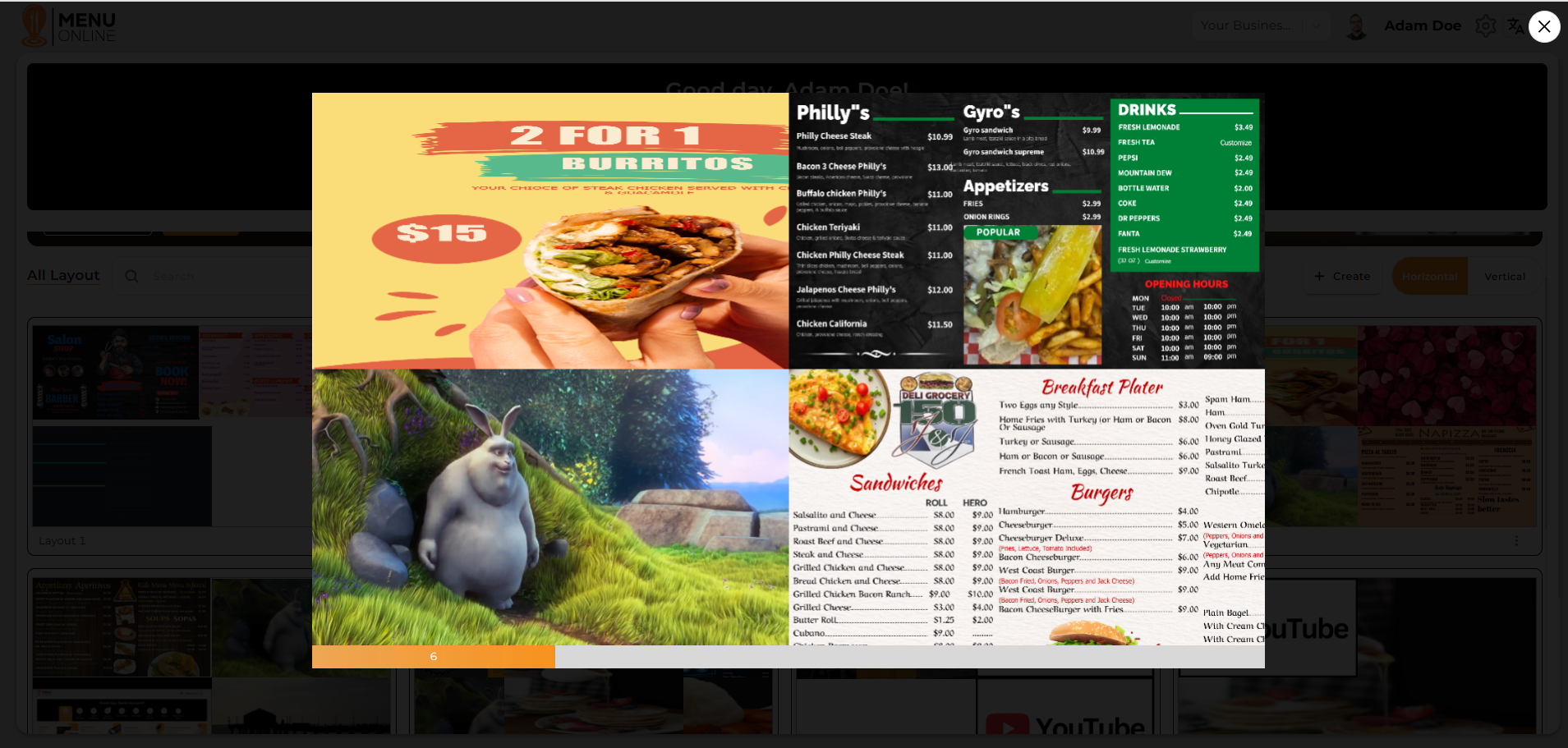
Step-1 Click on preview.
Step - 1 Inside the library, you can see all the uploaded samples in the system.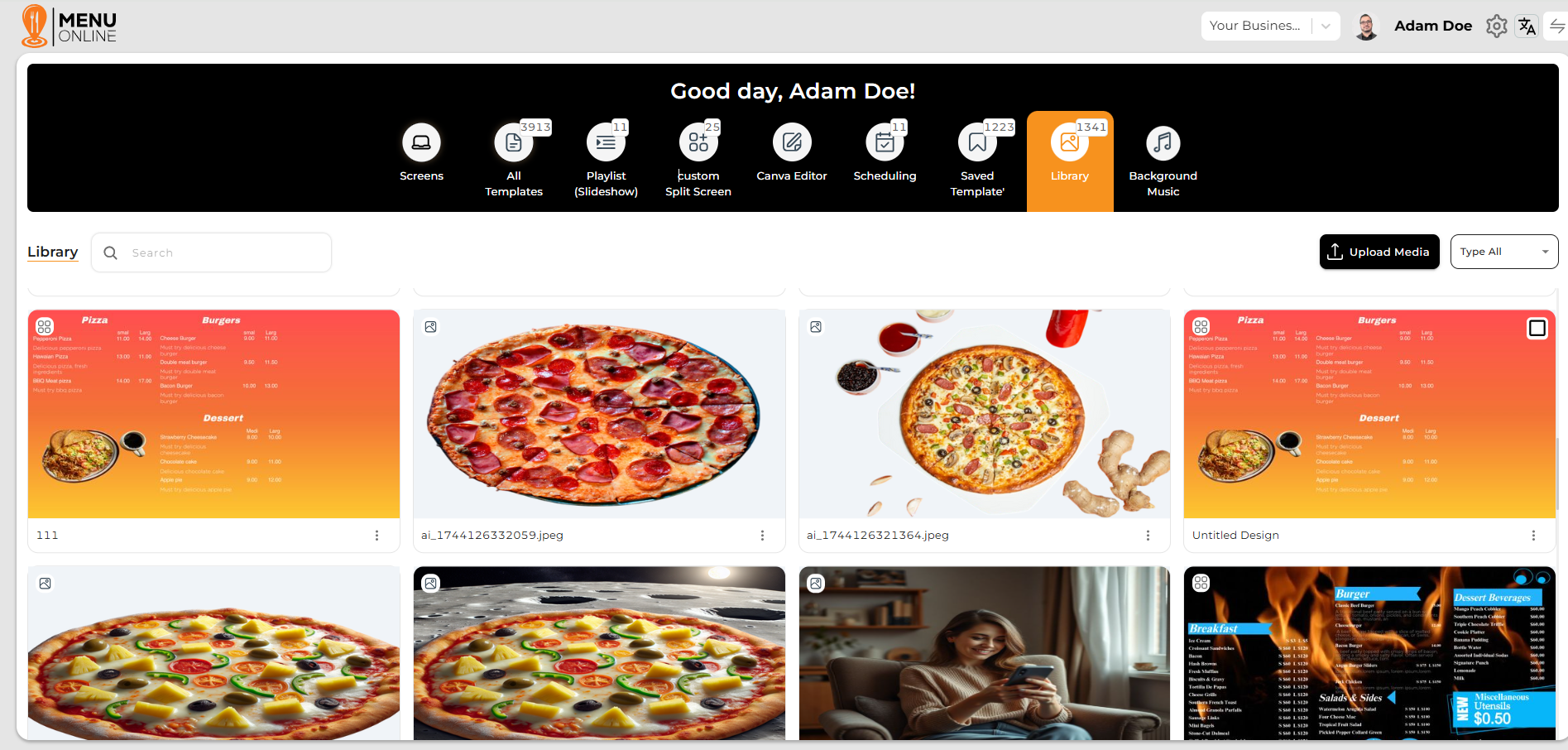
Step - 1 You can upload a new template by clicking upload new